Showing posts with label Microsoft Server 2008. Show all posts

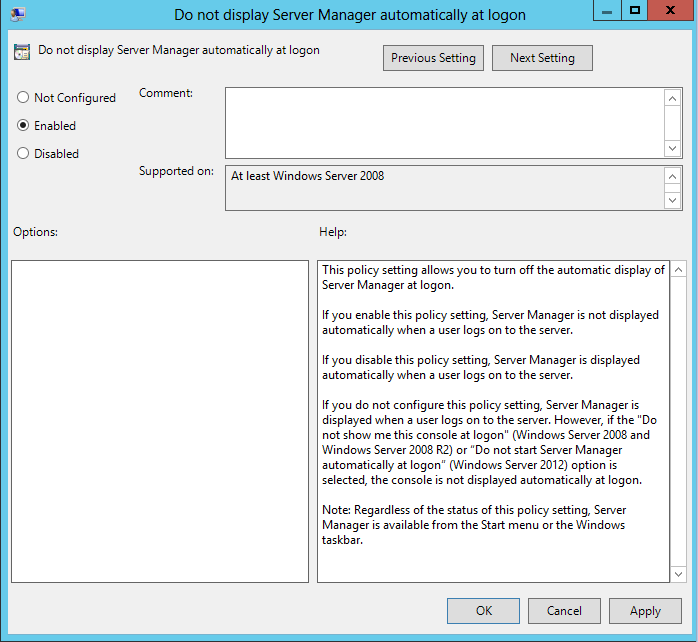
Disable Server Manager on logon with Group Policiy

1. Select "Start," "Administrative Tools" and "Group Policy Management."

2.  Navigate to the "Local Computer Policy/Computer Configuration/Administrative Templates/System/Server Manager/" sub-folder in the left pane of the Group Policy Management window.

3.Double-click the "Do Not Display Server Manager Automatically at Logon" setting in the right pane.


4. Select "Enabled" and then Select "OK."

5. Link the GPO to the appropriate OU that contains your servers and you are done.

Log off user session on remote machine using Powershell

This is a handy little tool you can use with Powershell or in command prompt to see who is logged onto a remote machine and to end there session. Great for servers when you get the "too many users already logged in" message when trying to access a server.

1. You need to get the session ID of a user to log off by running the following command:
 qwinsta /server:servername


2. Enter the following command with the session ID at the end to log the user of:
logoff /server:servername (session id)

I used these commands to put together the following script. It will prompt you for the server name and give you the output of current open sessions then prompt you for the session ID to log off. Enjoy:

$server = read-host "Hostname"

qwinsta /server:$server

$ID = read-host "Session ID to log off"

logoff /server:$server $ID

Group Policy: Create mapped drive that is synced locally to be available offline.

If you have users that go to client sites and will not always have access to a network connection, and need access to some non confidential documents on the network creating Administratively assigned cashed files can be the way to go.

1. Create a new group policy object.


2. In Group policy Management Editor expand:
     User configuration> Administrative Templates> Network>
     Offline Files> Select Specify Administratively assigned Offline Files


3. Select Enabled.
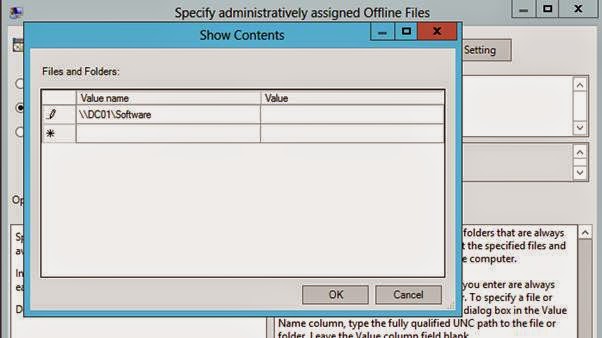
    Then Select "Show"
    In the show contents window enter the name of the UNC path of the network share in the "Value Name"             field. Leave the value field blank and select ok. Creating the offline share is done.


And in the same policy we will map the drive for the share that we just made available offline.

4. Again in Group Policy Management Editor Expand:
    Preferences> Windows Settings> Drive Maps


1. Set Action to "Update" (This will re-map the drive if the user removes it)
    Set Location: the location of the network share.
    Select the "Reconnect" radio button
    Label as: Gives the share a desired name
    Select a drive letter
    select apply


Link the GPO to the desired organizational unit that contains the users you wish to provide the offline files to. When they log in next they will have a mapped drive that will sync locally and be available to use offline.